 FirstLogbook
No matching sections
Try a shorter term such as “location”, “odometer” or “backup”, or show the full guide.
01 · Start your first logbook
FirstLogbook saves journey times, route coordinates, available speed, vehicle details and your annotations on your Android phone. You can start recording manually, or enable starts from a configured vehicle’s Bluetooth connection. Recorded distance is an estimate; dashboard odometer totals are entered separately.
- Install as an invited tester. Use the Google Play account approved for the internal test, accept the invitation’s testing link and install through Google Play. The app requires Android 10 or later.
- Prepare your recording allowance. Open the app and let its installation check finish. No FirstLogbook registration or password is needed. If preparation fails, use Settings → This installation’s recording allowance → Refresh recording allowance with an internet connection.
- Add a vehicle. Open Vehicles → Manage vehicles → Add vehicle. Enter its registration, make and model, and choose its fixed kilometre or mile unit.
- Choose a recording method. Manual recording is available from Trips → Start recording. For Bluetooth starts, pair the vehicle in Android first, then finish automatic recording setup.
- Save a baseline if you want dashboard calibration. While parked, use Trips → Update odometer and enter the vehicle’s total dashboard reading.
- Record a journey. Start while parked and verify the app actually shows Recording. At the end, park, stop the recording and open its details.
- Review and classify it. Choose Business or Private; Business trips also need a specific business purpose. Check any quality or interruption warning.
- Keep a copy. Save a CSV for reviewing journey records, or a backup for moving or recovering the full history. These serve different purposes.
Check your first real drive. Automatic recording depends on Android permissions, connection detection, storage and recording access. Confirm your first start and stop before relying on the setup for regular journeys.
The recorder uses available system locations first and requests fresh locations when needed. Sparse locations can miss bends, and gaps can leave distance unavailable or understated. Compare estimates with independently observed dashboard readings.
02 · Know the five tabs
Phones show a bottom navigation bar. Wider devices may show a navigation rail. A recording status strip remains available as you move between the main tabs.
| Tab | What you can do |
|---|---|
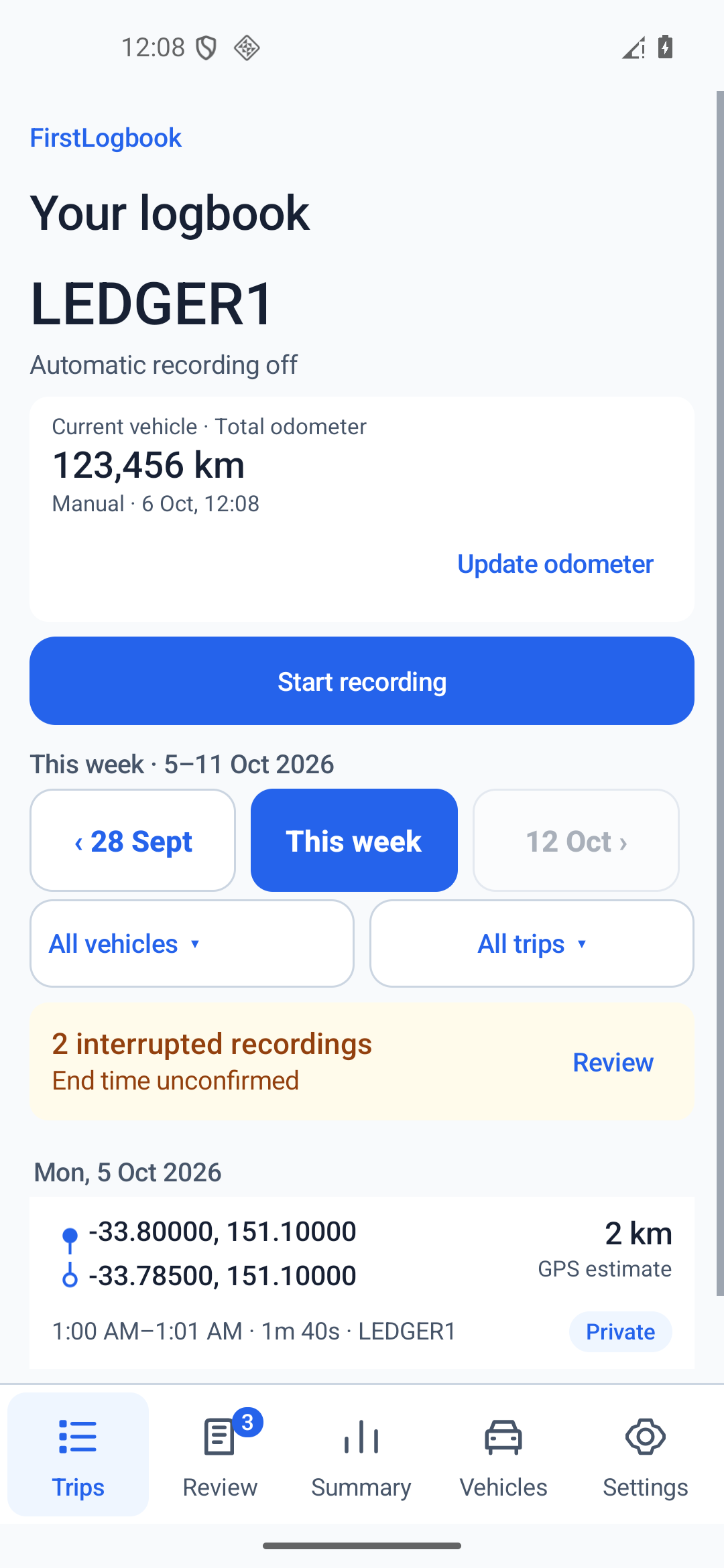
| Trips Your logbook | Start a recording, enter the current vehicle’s total odometer, browse weekly journeys and filter the list. |
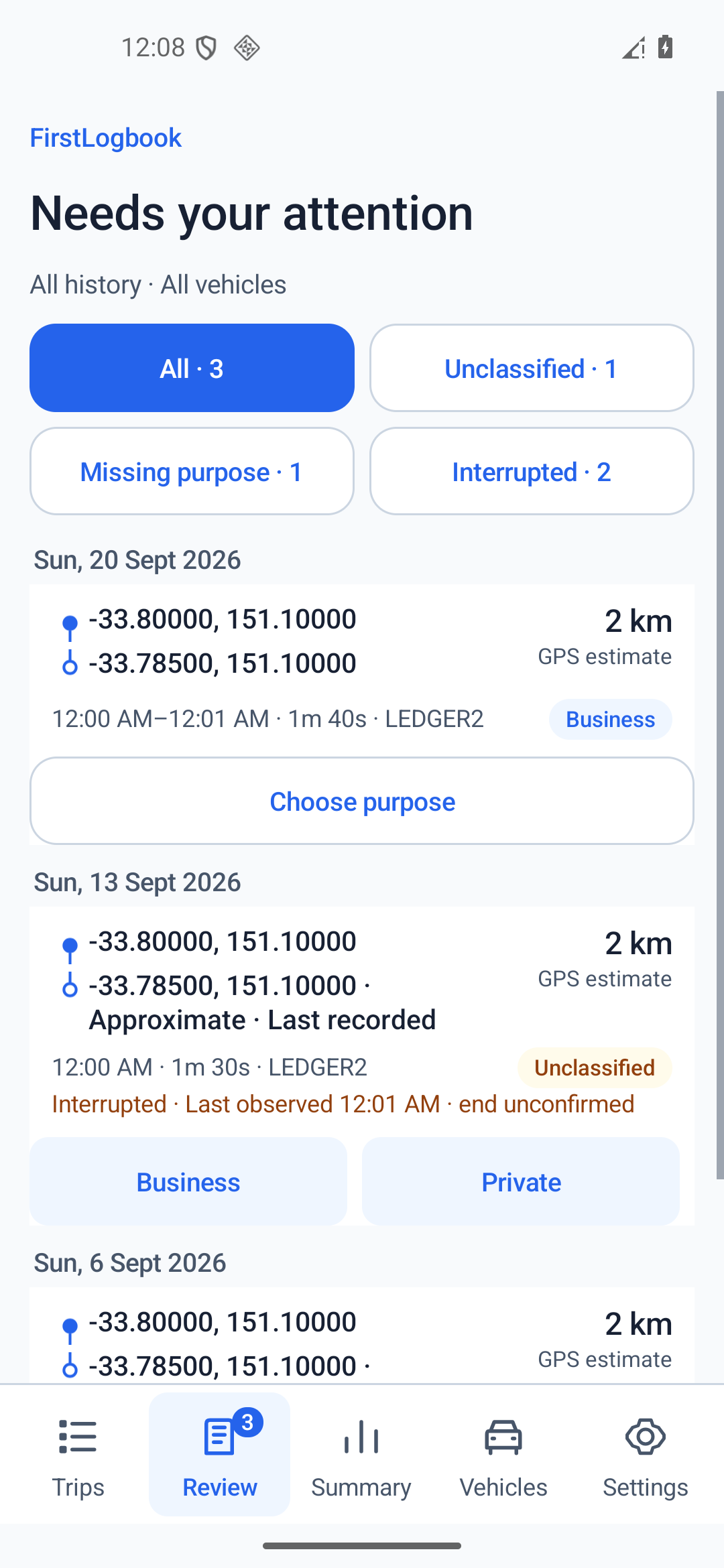
| Review Needs your attention | Find Unclassified, Missing purpose and Interrupted records across all history and all vehicles. |
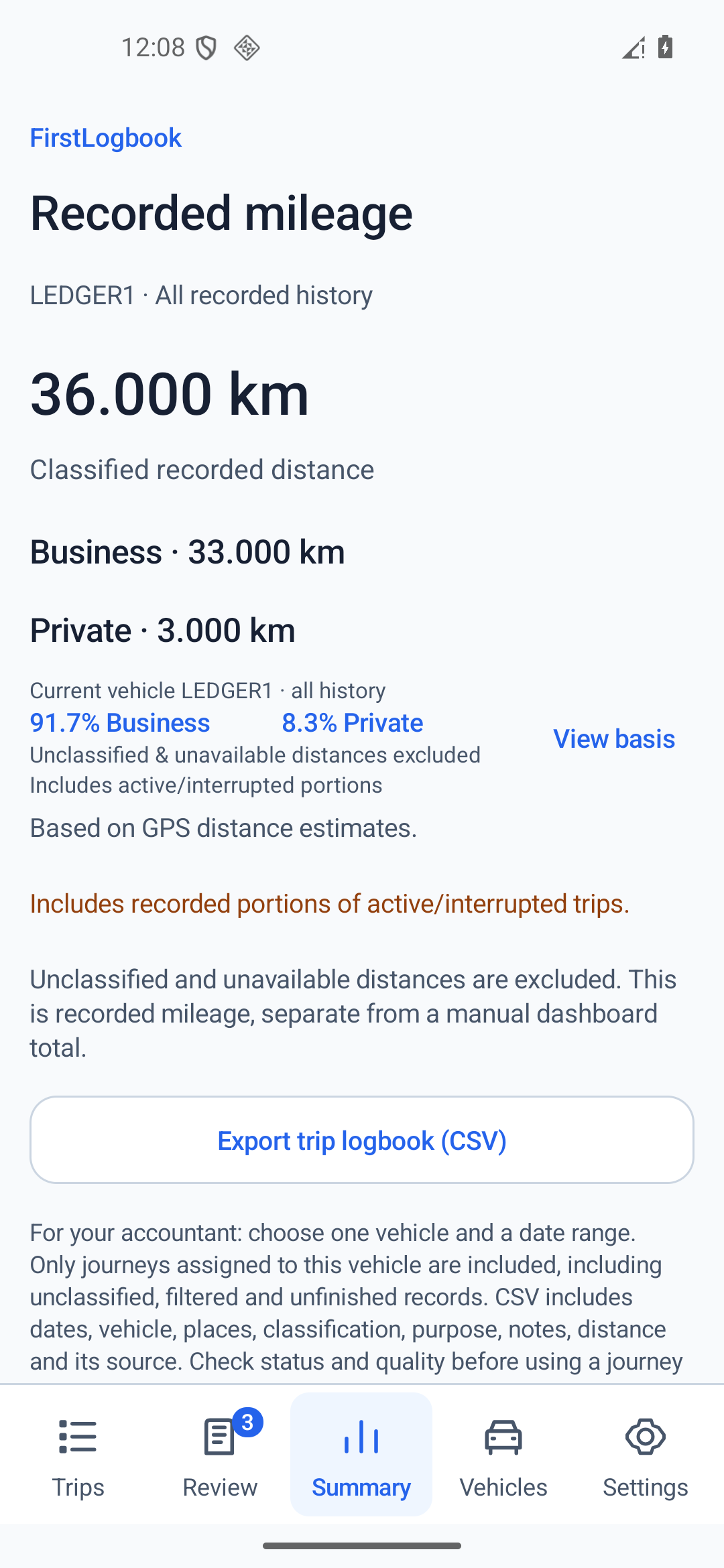
| Summary Recorded mileage | See the selected vehicle’s all-history Business and Private recorded distance, inspect its calculation basis and export a CSV. |
| Vehicles | Select or edit a vehicle, manage fixed units and Bluetooth setup, and inspect dashboard calibration. |
| Settings | Open recording rules, permissions, reminders, exports, backups, subscription controls and diagnostics. |
See the five tabs with sample records
These screenshots show synthetic sample records in the version 0.22.5 verification app, not real journeys. Select an image to open the full-size screenshot in a new tab.
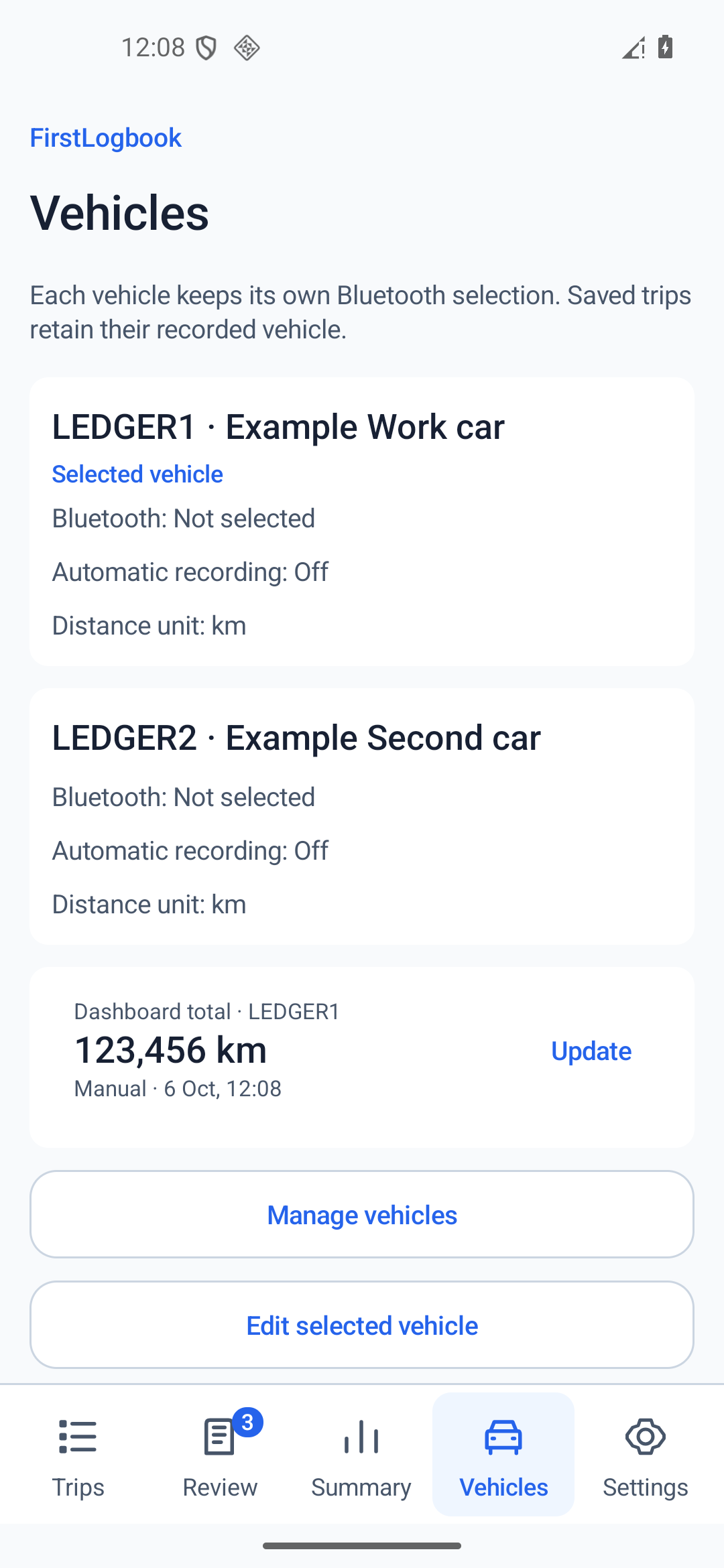
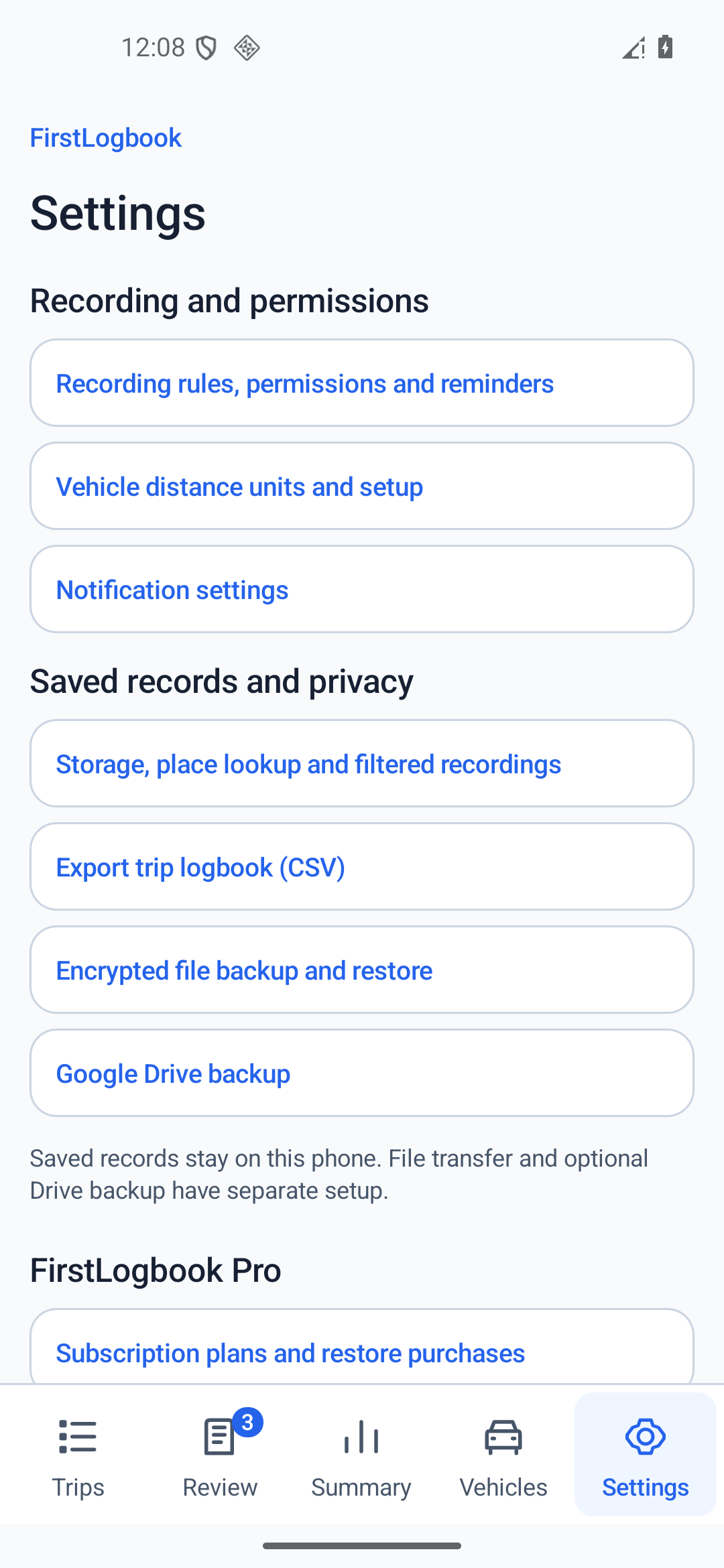
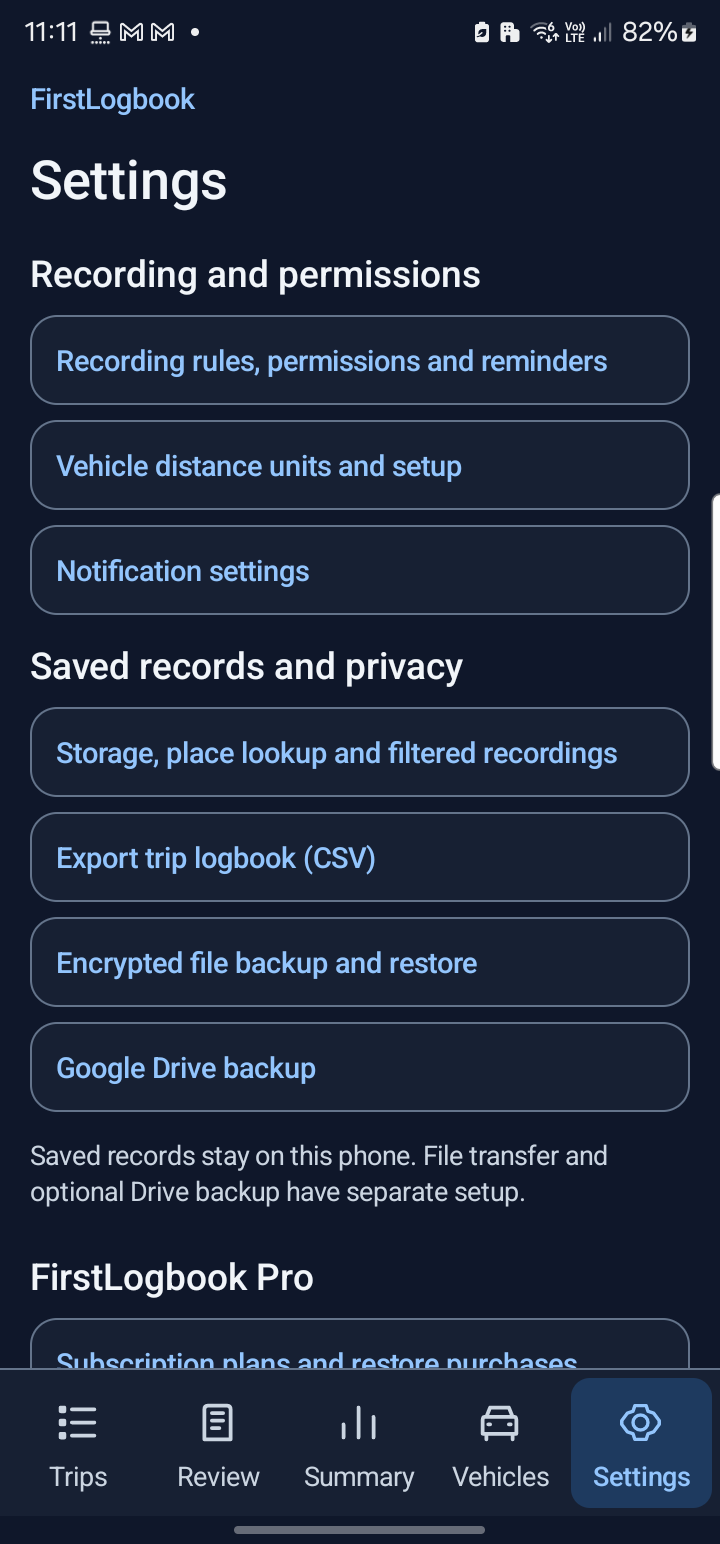
Find the right Settings page
The Settings tab groups shortcuts. Recording rules, permissions and reminders and Storage, place lookup and filtered recordings open a longer settings page. Scroll there to reach Long stop reminder, Valid trip rules, Trip places or Saved records. The other shortcuts open their dedicated screens directly.
03 · Set up and manage vehicles
Add a vehicle
- Open Vehicles → Manage vehicles → Add vehicle.
- On Details, enter Registration *, Make * and Model *. Engine capacity (cc, optional) can be left blank, including for an electric vehicle. If entered, it must be between 1 and 20,000 cc.
- Choose Kilometres (km) or Miles (mi), then Save and continue. This unit is fixed for this vehicle, including dashboard readings and newly recorded trips.
- On Bluetooth, use Choose paired device. If your car is not listed, use Open Bluetooth settings and pair it in Android first. Return and choose it, then select Use selected Bluetooth device.
- On Recording, choose Set up automatic recording to finish the permission checklist, or Finish to leave setup for later. Use manual recording for now skips automatic setup.
FirstLogbook selects an existing Android pairing; it does not pair or connect the car itself.
Select or edit a vehicle
Open Vehicles → Manage vehicles, then Select [registration] or Edit [registration]. You can also use Edit selected vehicle on the Vehicles tab. Finish the active recording before selecting, adding or editing a vehicle.
Each vehicle keeps its own Bluetooth binding and automatic-recording setting. Saved trips keep the vehicle details recorded when the trip started. Selecting another vehicle changes the next manual recording, dashboard card and Summary; it does not relabel earlier journeys.
Choose the unit carefully. An existing vehicle’s unit cannot be changed in its editor. Selecting or changing its Bluetooth device turns that vehicle’s automatic recording off, so complete the setup again afterwards.
While idle, an observed connection to another correctly configured vehicle can activate that vehicle for an automatic start. An active recording keeps its original vehicle.
04 · Enable automatic recording
Open Vehicles → Automatic recording setup. Alternatively, open Settings → Recording rules, permissions and reminders → Set up automatic recording. If enabled already, the control says Review automatic recording setup.
Choose the saved paired vehicle first. Use View setup checklist to see progress through these six steps. Finish later lets you return without completing setup.
- Recording consent. Read the recording disclosure and choose Agree and continue.
- Nearby devices. On Android versions that require it, choose Allow Nearby devices and approve the permission.
- Location while using the app. Choose Allow location. Select Precise and While using the app in Android. Approximate access can allow a start but may not provide usable distance.
- Location all the time. Choose Set background location access, select Android’s Allow all the time option and return with Back. Depending on Android, this appears in a prompt or in App info → Permissions → Location. Use Can’t find the option? for help. Work profiles or device policies may restrict this access.
- Vehicle approval. Keep Bluetooth on and the selected paired vehicle nearby. Choose Approve selected vehicle and accept Android’s companion-device approval. This is a separate approval from Bluetooth pairing.
- Enable automatic recording. Choose the final Enable automatic recording control. Permissions alone do not turn the feature on. Check for You’re ready to go and finish with Done.
For Android’s current permission wording, see Google’s location-permission help.
Optional notifications
Use Allow trip reminders or Notification settings to allow reminders. You can also choose Enable recording without reminders → Continue without reminders. Notification permission is separate from recording permission.
What happens when you connect
An observed connection to a configured vehicle can start a recording. Check the actual Recording status. Choose Business or Private when prompted while parked; if still Unclassified after two minutes, one reminder may appear when notifications are allowed. Classification never starts, pauses or stops recording.
A Bluetooth disconnection starts a 60-second reconnection window. Location recording continues during this window, shown as Reconnecting. Reconnecting to the same vehicle in time keeps the journey together. A longer disconnection ends it; a later connection can start a new journey.
Using Stop ends the recording immediately. The same unchanged connection does not continually restart an explicitly stopped trip. A reconnection or deliberate connection check can allow a later start.
Turn automatic recording off
Open Settings → Recording rules, permissions and reminders → Disable automatic recording. Manual recording remains available. Check the displayed state when returning to setup.
If a start is missed: reopen the app, check the intended vehicle’s setup, permissions and allowance, and use manual Start recording when appropriate. Android and manufacturer background restrictions can delay or prevent triggers. Force-stopping the app can prevent automatic triggers until it is reopened.
05 · Record manually and stop a trip
Start while parked
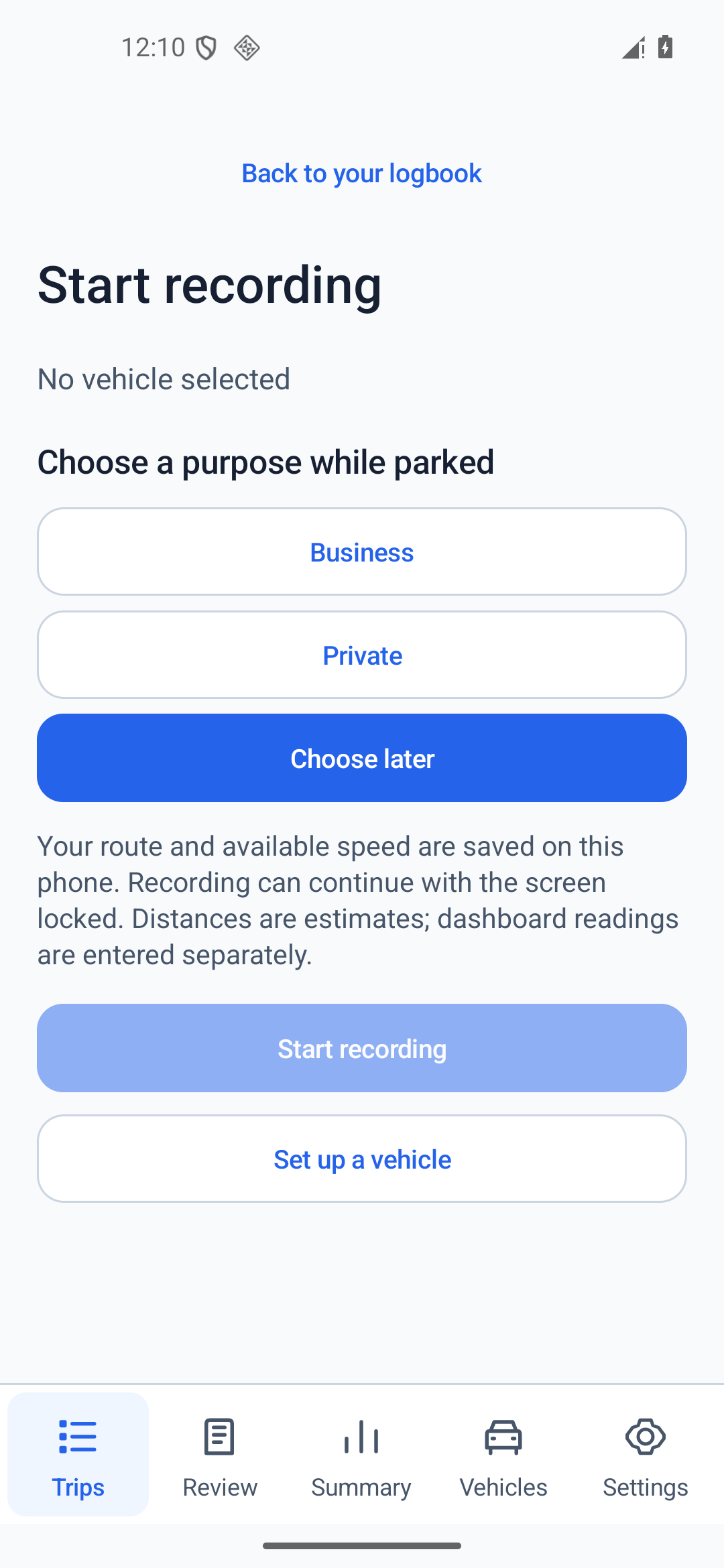
- Select the correct vehicle in Vehicles, then open Trips → Start recording.
- Under Choose a purpose while parked, select Business, Private or Choose later. Choosing later leaves the journey Unclassified.
- Choose Start recording, read Start this recording?, and confirm Start recording. Grant Android location permission if prompted.
- Back on Trips, verify the status changes to Recording. A requested start can fail, so read any status or error before driving.
Only one recording can be active. Recording can continue with the screen locked. A manual recording remains active until you stop it or it is interrupted; automatic Bluetooth disconnection rules do not finish a manually started recording.
Stop while parked
- Use Stop in the persistent recording strip on a main tab. Tap Recording to inspect the active journey if needed.
- In Stop this recording?, choose Stop recording. Keep recording cancels the stop.
- Open the saved journey and check its completion status, distance, source and purpose.
Long stop reminder
Open Settings → Recording rules, permissions and reminders → Change reminder time. Choose 5, 10 or 15 minutes; the default is 10.
After observed parking, the End this trip? notification offers End trip and Keep recording. It does not end the trip by itself. Keep recording silences that parking episode until movement resumes. Delivery depends on observed locations and Android notification settings.
06 · Find your journeys
The Trips list uses Monday–Sunday weeks, the device’s local time zone and each journey’s start time. Use the previous-week button, This week or the next-week button to browse. Future weeks beyond the current week are unavailable.
- Vehicle filter: choose All vehicles, a recorded vehicle or Vehicle not recorded.
- Purpose filter: choose All trips, Business, Private or Unclassified.
- Journey details: tap a row to inspect places, times, classification, distance source and quality.
An empty view does not prove your history was deleted. Change the week and filters, then check Review and the Show filtered recordings setting.
Short or stationary recordings
Open Settings → Storage, place lookup and filtered recordings → Valid trip rules. Minimum trip distance offers thresholds equivalent to 100, 200 or 500 metres, displayed in the selected vehicle’s unit. The default is 200 metres.
A valid trip also needs confirmed movement of at least 100 metres after allowing for location accuracy, observed at least twice, ten seconds apart, within a continuous location segment. An out-and-back drive can qualify. A location gap alone does not prove movement.
Turn on Show filtered recordings to see retained short or insufficient-movement records. Labels can include Pending movement confirmation, Filtered: short movement, Filtered: no confirmed departure or Filtered: insufficient movement evidence.
Filtering keeps the records. Changing the rule also changes which saved trips appear in the default list. It does not erase their original data or exclude assigned journeys from CSV. It does not change the separate qualifying-journey rule for the free allowance.
07 · Review records and quality
Open Review. Its queues cover All history · All vehicles, independent of Trips’ week, vehicle, purpose and validity filters.
| Category | What to check |
|---|---|
| Unclassified | Choose Business or Private. Quick actions are available for unclassified records. |
| Missing purpose | The trip is Business but has no specific business-purpose category. Open it and choose one. |
| Interrupted | The end of recording was not confirmed. Inspect the last observed time, location and quality before using its recorded portion. |
| All | The combined queue of unique records needing attention. A trip can appear in several categories; the overall count is not the sum of category counts. |
Read trip details
Check whether the status is Recording, Stopped, Interrupted or Start failed. Details show observed duration, first and last usable location, usable points and segments, skipped gaps or sparse segments, distance source and validity evidence.
An interrupted record preserves the last observed information. Its endpoint does not prove arrival, and the unrecorded interval is not reconstructed. An unavailable measurement is not a measured zero. The app does not provide a control to retroactively confirm an interrupted stop or fill in its missing route.
Daily review reminders
When notifications are allowed, a Review trips reminder can appear around 6 pm in device local time for Unclassified records or missing Business purposes across saved history. Android scheduling is inexact. This reminder prompts review and does not control recording.
Open Settings → Notification settings to allow the app and relevant channels, including Automatic trip purpose, Daily trip review and Parking check. Delivery on a car screen depends on the device and connection.
08 · Add purpose, notes and places
Business or Private
Choose the classification from an unclassified trip row, the current-trip controls or a trip-purpose notification while parked. For a Stopped or Interrupted record, open its details and choose Edit trip purpose → Business or Private. These corrections change the categorisation while retaining the recorded journey boundaries and measurements.
Choose a business purpose
Business classification and its specific purpose are separate. Open a Business trip and use Choose business purpose or Edit business purpose. Choose one of the six categories:
- Visit customer
- Attend meeting
- Site visit
- Pickup / delivery
- Purchase supplies
- Other business
A purpose may be requested when you choose Business. The Missing purpose review queue helps find details deferred earlier. A classification or category does not establish tax eligibility.
Add context in a note
In trip details, choose Add note or Edit note. Enter up to 1,000 characters in Trip note, then Save. Use Cancel to discard the edit. Saving empty text removes the note. Notes are available for active, stopped and interrupted records and are included in CSV and backups.
Correct place names
- Open the trip and choose Edit places.
- Enter Start address or intersection and End address or intersection, up to 160 characters each.
- Choose Save. Clearing a manual override restores the automatic, cached or coordinate label.
Place edits change the label only; they do not change GPS coordinates or distance. For active or interrupted records, the end place is the last observed location.
Control address lookup
Address lookup is on by default. Open Settings → Storage, place lookup and filtered recordings → Trip places → Disable address lookup to turn it off. Use Enable address lookup and confirm the disclosure to turn it back on.
For completed trips visible in the list, including older trips, endpoint coordinates are sent to your Android geocoding provider, which may be Google. If needed, they are also sent to the public OpenStreetMap Overpass service to find a nearby junction. Providers may receive your IP address. Routes, purposes and notes are not sent for this lookup.
Names are estimates cached on your phone. Turning lookup off keeps cached names and cannot recall earlier requests. You can still edit names manually. A coordinate label or Not recorded can reflect unavailable place information. CSV uses saved or cached labels without performing a new lookup.
09 · Enter dashboard totals and calibrate
The Trips card Current vehicle · Total odometer shows your vehicle’s manual dashboard total. It is separate from individual trip distance and Summary’s recorded mileage.
Save a dashboard reading
- While parked, select the correct vehicle.
- Use Trips → Update odometer, or Vehicles → Update on the dashboard card.
- In Update dashboard odometer, enter the vehicle’s Total odometer in its fixed unit. Kilometres require a whole number; miles permit decimals.
- Choose Update reading. The confirmation time is saved as the observation time.
Enter the whole dashboard total, not distance travelled since your last trip. There is no historical date/time field. You can enter a reading during recording, but a trip crossing that input time can block calibration; save readings between completed recordings for usable boundaries.
How the interval is calculated
The first reading creates a baseline. Two valid linked readings create an interval. The app distributes the dashboard difference across complete recordings for that vehicle between the two input times, in proportion to their original GPS distances.
Example: if two complete recorded trips have GPS estimates of 10 km and 20 km, and the dashboard increased by 36 km between readings, their allocated estimates are 12 km and 24 km. This assumes all driving during the interval was recorded. Missed driving affects the allocation.
Trip dashboard start and end values are calculated allocations, not readings independently observed for each trip. Original GPS data, dashboard inputs and their timestamps are retained.
Inspect calibration and warnings
In Vehicles, choose the dashboard card’s Calibrated · [count] recordings · View or Calibration needs review · View. The Dashboard calibration dialog shows readings, input times, dashboard difference, original GPS total, allocations and warnings. Use Other intervals to browse previous intervals. Allocated trip details also offer View calibration.
An interval may be blocked by an active or interrupted trip, an unconfirmed stop, a trip crossing a reading time, overlapping recordings, missing vehicle identity, unavailable GPS weights, inconsistent readings or unchanged dashboard totals despite GPS movement. Gaps, sparse locations and save failures can make accepted proportions unreliable. Read the displayed reason; missing distance is not silently filled with zero.
Correct a lower reading carefully
A lower total prompts Save lower reading as correction?. Choose Review to check the entry, or Save correction if the earlier reading or dashboard changed. The previous observation stays saved, affected calibration is removed, and the corrected reading becomes a new baseline.
Trip-list kilometre estimates round positive distances up to whole kilometres; miles show one decimal place. Finer detail and source values can differ. Allocations round independently on screen, so displayed rows may not add up exactly. CSV retains more precise values, always in kilometres.
10 · Understand the mileage summary
- Select the correct vehicle in Vehicles.
- Open Summary to see its Recorded mileage.
- Choose View basis to inspect the source and excluded records.
The Summary covers all retained recorded history for the selected vehicle. It is independent of Trips’ selected week and list filters. It uses calibrated distance where available and original GPS estimates otherwise.
Business and Private percentages use only the sum of those two classified recorded distances. Unclassified records, unavailable distances and records without a vehicle are excluded. Classified filtered records and recorded portions of active or interrupted trips can be included; the page indicates partial portions and GPS, calibrated or mixed sources.
Example: 60 km Business, 40 km Private and 20 km Unclassified gives a Summary Business share of 60%: 60 ÷ (60 + 40). The Unclassified 20 km is excluded. A CSV preview including all three uses a different denominator.
This percentage is not a share of the vehicle’s full dashboard total or a date-limited annual result. Use View basis and review missing records before drawing conclusions. If offered, View trips without a vehicle opens that filter in Trips for the selected week; browse other weeks to find more.
11 · Export your records
Save a journey CSV
- Choose Summary → Export trip logbook (CSV) or Settings → Export trip logbook (CSV).
- Select one vehicle. If only one eligible vehicle has journeys, selection is skipped.
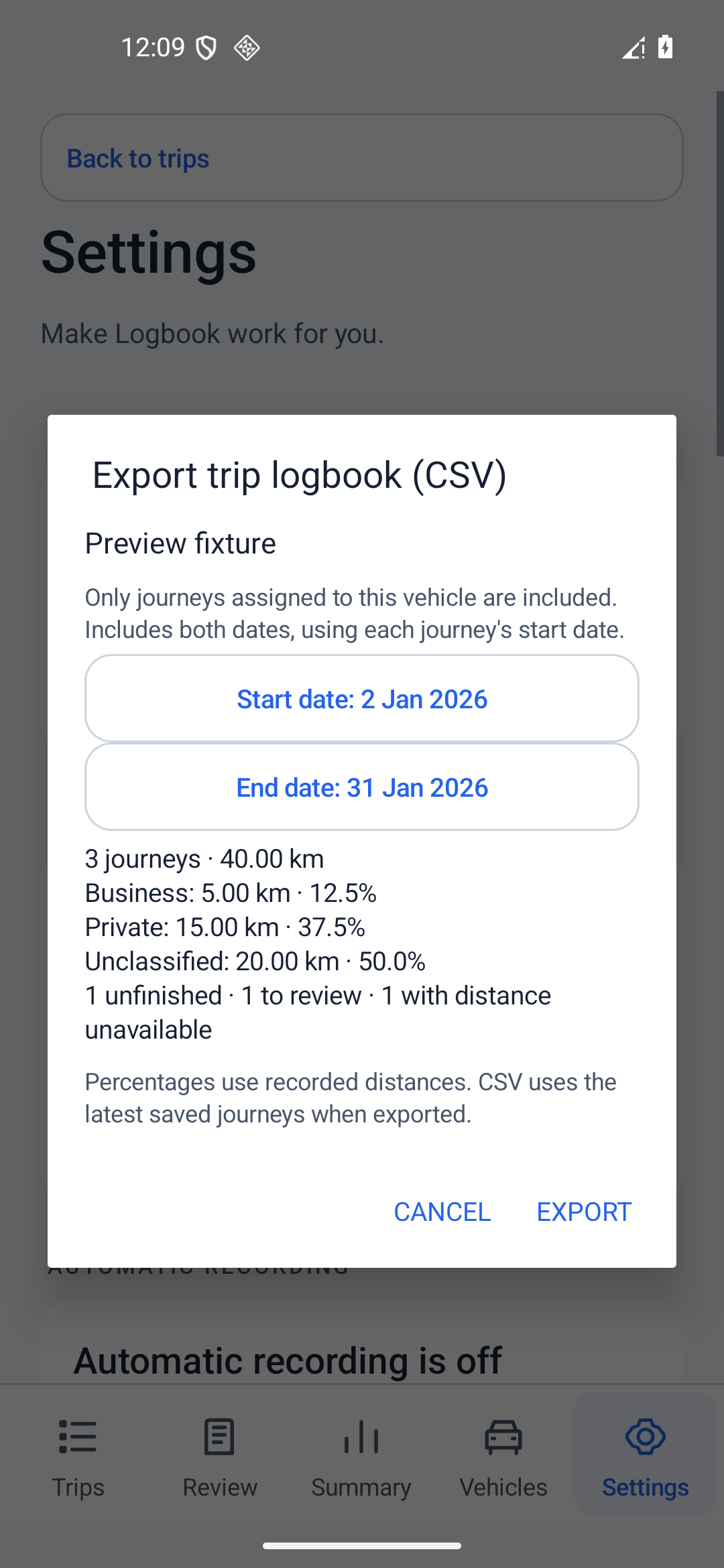
- Choose Start date and End date. Both dates are included, using each journey’s start date in the device time zone.
- Wait for the preview calculation. Check journey counts, status and available distance. If it fails, use Retry calculation. If empty, change the dates.
- Choose Export, then save through Android’s system file picker to your chosen local folder or connected document provider.
Only journeys assigned to the chosen vehicle are included. The CSV includes Unclassified, filtered, unfinished and failed-start records in the selected dates, regardless of the current list filters. It does not silently assign vehicle-less records to the selected vehicle.
Read the CSV correctly
The 19 columns include start/end/last-recorded times and export time zone; vehicle registration, make and model; classification and business purpose; start and end or last-recorded place; distance, recorded unit and distance basis; estimated dashboard start/end; recording status, review warning and notes.
- Numeric distances and estimated odometer columns are always kilometres, even for a mile-based vehicle. Recorded distance unit preserves the original km or mi choice. The preview also uses kilometres.
- Trip end is populated only when the stop was confirmed. Other statuses keep it blank and retain Last recorded.
- Unavailable distance is blank, rather than an invented zero. Distance basis identifies a GPS estimate or dashboard allocation estimate.
- Review warning flags incomplete, quality, classification or missing-purpose issues. Check these before using a record for accounting.
- The preview’s percentages include all available distance in the export, including Unclassified. Summary excludes Unclassified, so the percentages can differ.
The journey CSV does not contain the complete route-point history. Saving it does not send it to an accountant or anyone else; you decide where to save and share it.
Diagnostic JSON
For support or a detailed record, open Settings → Recording controls and diagnostics → Export diagnostic journal (JSON) and save with Android’s picker. This separate export can contain the full saved history, precise route coordinates, device and permission information, technical events, diagnostic notes, battery readings and CPU/network activity.
Review it before sharing. Device battery changes include other apps and charging, so they do not measure FirstLogbook’s energy use alone. Diagnostic JSON, journey CSV, a Drive snapshot JSON and an encrypted .flbk backup are different files. The app does not offer a general CSV or JSON import.
12 · Back up with an encrypted file
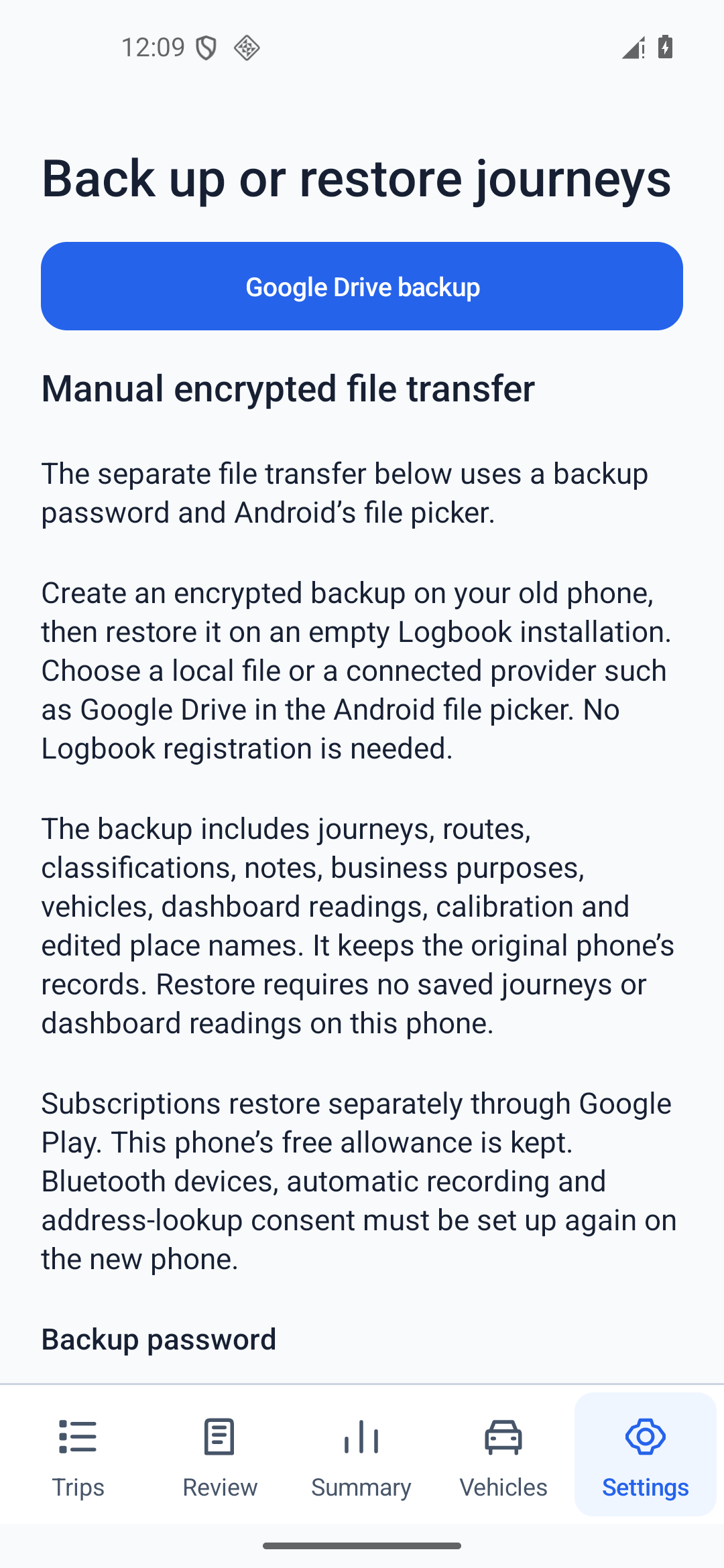
Use this for a password-protected copy of the full history or a deliberate phone transfer. Open Settings → Encrypted file backup and restore. The page is titled Back up or restore journeys with Manual encrypted file transfer. This method does not require a subscription.
Create a backup
- Stop recording and wait for any restore or maintenance operation to finish.
- Enter a Backup password of at least 12 characters, then enter it exactly again in Confirm password when creating a backup. Spaces are preserved.
- Choose Create encrypted backup.
- Use Android’s picker to save the
.flbkfile to a location you can keep or access on the destination phone. - Wait for the saved-success message before leaving the page. Your original history remains on this phone.
Keep both the file and its password. The password cannot be recovered. Store it securely and separately from the backup. A journey CSV cannot replace this full-history restore file.
Restore on another phone
- Install the app on the destination phone. Stop recording on both phones.
- Check that the destination has no existing journey history and no dashboard readings. Restore does not merge two histories. Keep a backup of any destination records before deliberately removing them.
- Open the encrypted file backup page and enter the original backup password.
- Choose Restore encrypted backup, select the
.flbkfile and wait for success. - Check restored journeys, vehicle units and dashboard readings. Set up Bluetooth, automatic recording, permissions and address-lookup preferences again. Restore any subscription separately with Google Play.
The backup copies journeys, routes, classifications, business purposes, notes, vehicles and their fixed units, dashboard readings/calibration and edited places. It keeps the destination’s recording allowance. Bluetooth bindings, automatic settings and lookup consent are not transferred.
If shown after an interrupted transfer, use Finish interrupted restore to complete recovery. Do not erase the source copy to retry. File transfer supports up to 32 MB of records and 100,000 events; larger histories remain on the original phone, but transfer fails instead of creating a partial backup.
13 · Use optional Google Drive backup
Open Settings → Google Drive backup. Drive uses your chosen Google account; it needs no FirstLogbook registration or backup password. This account may be different from the Google Play account that owns your subscription.
Connect and make a copy
- Choose Connect Google Drive and approve the selected Google account.
- Choose Enable backup on this phone, read the disclosure and confirm Enable. An active subscription is required to enable new uploads.
- With recording and restore/maintenance stopped, choose Back up now.
- Wait for success and check the last successful backup information. An unchanged history may report that the saved backup already contains the records.
Connecting alone uploads nothing. Drive snapshots include journeys, route coordinates, classifications, notes, vehicles, dashboard readings and edited place names in a private app folder. They travel over HTTPS and have no additional FirstLogbook password encryption.
Optional daily backup
Automatic daily backup on an unmetered network is off by default. Enable it and confirm if wanted. Android schedules uploads while recording is stopped and an unmetered network, usually Wi-Fi, is available. It is not a guaranteed upload at an exact daily time.
Snapshots include the recording journal and its diagnostic events as well as journey records. Each snapshot is limited to 32 MB. Each phone keeps its latest and previous versions; older versions from that phone are removed after successful upload. Other phones’ snapshots remain. Drive backup is a snapshot service, not live history synchronisation or a two-phone merge.
Find and restore a saved version
- Choose Refresh saved backups and inspect each backup’s phone, version, date and size.
- On an idle destination with no journeys and no dashboard readings, select Restore this backup.
- Read the confirmation and choose Restore. Wait for completion, then inspect the restored history.
- Set up Bluetooth, automatic recording and privacy/permission preferences again. Upload remains off after restore until you enable it.
Restoring preserves the destination’s free allowance and the source backup. Existing Drive backups can be restored, exported or deleted after a subscription expires.
Export, delete, disconnect or change accounts
- Export this backup saves a selected snapshot as JSON through Android’s picker. It contains sensitive records without a FirstLogbook backup password. The current app restores the selected Drive version directly; it does not provide a local-import control for this exported JSON.
- Delete this backup permanently removes the selected cloud file after confirmation. It does not delete local history or other snapshots.
- Disconnect on this phone stops uploads and clears this phone’s connection. Existing Drive backups and other phones stay intact.
- Turning off the daily switch stops scheduled uploads and keeps saved backups.
- Choose another Drive account removes the previous account’s upload consent. Review and confirm backup setup again for the new account.
14 · Recording allowance and subscriptions
20 free qualifying journeys
Each installation receives 20 free qualifying completed journeys, with no time limit. No FirstLogbook registration is needed. A qualifying journey must be stopped, saved healthily and meet the separate movement rule, including at least 200 metres of GPS estimate and supporting movement observations. Short, failed or unconfirmed recordings do not automatically count as a completed qualifying journey.
Active or pending recordings can reserve allowance, so “available for new recordings” can differ from “journeys left”. Changing the minimum-distance visibility setting does not redefine allowance settlement.
Open Settings → This installation’s recording allowance to see progress. Refresh recording allowance checks the status online; it does not reset the count. The deeper settings page may call this shortcut FirstLogbook account, but it opens the same installation allowance screen.
Subscribe to FirstLogbook Pro
- Open Settings → Subscription plans and restore purchases.
- Review the available Monthly or Annual plan and its current local Google Play price.
- Complete the Google Play purchase. Wait until verified paid access appears in the app.
Paid access enables continued manual and automatic recording beyond the free allowance and optional new Drive uploads. Billing begins immediately; unused free journeys do not postpone payment. Plans renew through Google Play until cancelled. Pending payment does not unlock paid recording.
Restore or refresh purchases
After reinstalling or moving phones, use Restore purchases with the Google Play account that owns the subscription. Allow network verification to finish. Use Refresh subscription status if an active purchase has not appeared. For unavailable plans, try Reload store prices. A build or testing channel may restrict purchase availability.
Purchases and journeys restore separately. Restoring a purchase recovers subscription access. It does not recover local journeys. Use an encrypted file or saved Drive backup to restore those records.
Manage or cancel
Choose Manage or cancel in Google Play, or open Google Play → Payments & subscriptions → Subscriptions. Access continues through the paid period after cancellation. Uninstalling, clearing data, disconnecting Drive or deleting a backup does not cancel a Google Play subscription.
For the current cancellation steps and purchasing-account help, see Google Play’s subscription help.
Saved history stays viewable, editable and exportable after the free allowance is exhausted or paid access expires. Existing Drive snapshots remain available to restore, export or delete. If already charged but access is missing, check the purchasing account and restore or refresh before buying again.
15 · Keep records and control privacy
Storage status and optimisation
Open Settings → Storage, place lookup and filtered recordings → Saved records to inspect storage. Optimize storage appears when useful. Stop recording first, choose it and keep the screen open until it finishes. Optimisation compacts storage and retains all saved events.
Saved histories persist across app restarts without automatic trimming. Read storage or save-failure warnings before relying on another trip. Keep the original phone and export or back up available records before clearing data or uninstalling.
Understand each data destination
| Feature | Where data goes |
|---|---|
| Journey recording | History, routes and annotations are stored on this phone. Android clear-data or uninstall can remove local records. |
| Address lookup | On by default. Completed visible trips’ endpoint coordinates can reach Android geocoding and OpenStreetMap Overpass providers, with your IP address. Routes, purposes and notes are not sent for lookup. |
| Allowance and purchases | An anonymous installation identity and verified purchase information support allowance and subscription checks. Routes, coordinates and notes are not sent to that entitlement service. |
| Encrypted file | The destination you select in Android receives a password-encrypted .flbk copy. Keep its password; it cannot be recovered. |
| Optional Drive backup | Your explicitly selected Drive account receives a snapshot, including the recording journal and diagnostics, in its private app folder over HTTPS, without additional FirstLogbook password encryption. |
| CSV and JSON exports | Files go to your chosen Android document provider. CSV can contain places and notes; diagnostics and backups can contain precise routes. Secure and share them deliberately. |
Deletion and device changes
The advanced diagnostics page includes Clear local diagnostics. Despite its label, this clears local recording history. It may be blocked during recording or required recovery. Keep an export or backup first. Clearing records inside the app does not reset the recording allowance or cancel a subscription; Android clear-data or reinstall may create a new installation identity while removing local data.
Use Delete this backup for a selected Drive copy, and delete exported files separately in their saved destination. Disconnecting Drive does not delete its backups. The current installation allowance page has no FirstLogbook login or account-deletion form.
The current app does not offer selective trip deletion, arbitrary distance editing, trip merge/split, vehicle deletion or a general CSV/JSON import. Its diagnostic classification controls are separate from trip classification; use Trips or Review to edit a journey’s purpose.
For the full explanation, read Privacy & data.
16 · Troubleshooting
Check the displayed status and follow the relevant path while parked. If a problem persists during internal testing, use the contact route supplied with your invitation and include the app version, Android version and what happened.
| What you see | What to check or do |
|---|---|
| Automatic trip did not start | Check Trips’ actual Recording state, Bluetooth connection, the correct vehicle binding and all six setup steps. Verify background location, Precise access, Nearby devices and vehicle approval. Check allowance and storage. Reopen the app; use manual Start recording as available. When parked, Settings → Recording controls and diagnostics → Check vehicle connection performs a deliberate check. |
| “Allow all the time” is missing | Use setup’s Can’t find the option? help. Check Android App info → Permissions → Location. Android versions and managed-device policies differ; manual recording remains an option if automatic setup cannot be completed. |
| Trip is absent from Trips | Check week, vehicle and purpose filters. Enable Settings → Storage, place lookup and filtered recordings → Show filtered recordings. Review covers all history and vehicles. Older vehicle-less records need their own filter. |
| Distance is low or unavailable | Check precise location permission, usable points, gaps and source in trip details. Waiting for a usable location is not zero distance. Sparse locations can miss bends; missing intervals are not estimated. Compare independently observed dashboard totals. |
| Interrupted trip or failed save | Inspect the last recorded point/time and quality warning. Keep the original phone and back up/export available history before any clear or reinstall. Do not assume the complete route was saved or retroactively confirmed. |
| Purpose or parking reminders missing | Open Settings → Notification settings. Allow the app and its relevant channels. Reminder permission is optional for recording. Android delivery can vary; the daily reminder time is not a user-configurable setting. |
| Calibration needs review | Open the Vehicles dashboard’s View control. Check two linked readings, completed trips between input times, usable GPS distance and the stated warning. Active/interrupted or boundary-crossing trips can block allocation. Record all driving and enter readings between trips. |
| CSV empty or totals differ | Select a vehicle with assigned journeys and a valid range of journey start dates. Unassigned records are excluded. CSV preview includes Unclassified distance; Summary excludes it. Numeric CSV units are always km, and on-screen rounding can differ. |
| Encrypted restore rejected | Stop recording and maintenance. Confirm the exact password, including spaces, and use a .flbk file. Destination journeys or dashboard readings prevent merge. Keep both phones’ copies; use Finish interrupted restore if offered. |
| Drive backup failed or not listed | Check network, the selected Drive account, upload consent and active subscription for new uploads. Stop recording before backup. Reconnect if authorisation expired, then Refresh saved backups. Check the 32 MB limit. Local history is retained on a failed upload. |
| Subscription not active after payment | Check network and the purchasing Google Play account. Use Restore purchases or Refresh subscription status and wait for verification. Pending payment is not verified paid access. If charged already, avoid another purchase until checked. |
| Battery or locked-screen concern | Confirm recording status and quality after a short test on your device. Android background restrictions can affect delivery. Diagnostic battery drop includes other apps and charging, so it is not an app-only consumption measure. |
Use diagnostic JSON only when needed and review it before sharing: it can contain precise locations and notes. For installation and tester access, see Help & support.